
Remoting to your computer
Connecting to your Computer
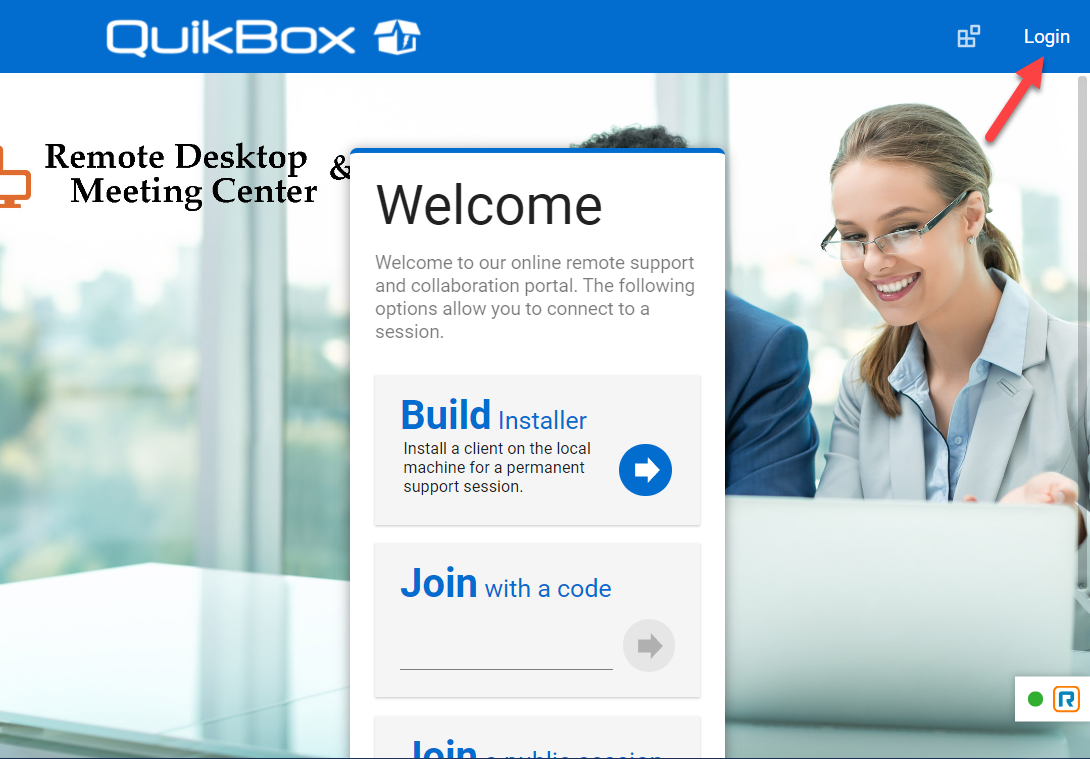
1. Using Google Chrome Web Browser, go to your unique URL: https://abccompany.thiessenremote.quikbox.com
2. Login into the host page using your username and password.
Your user name is your first initial and last name i.e. jdoe. The password (should be the same as your desktop username and password).password.
3. Click on Remote Access then My Computer Session Group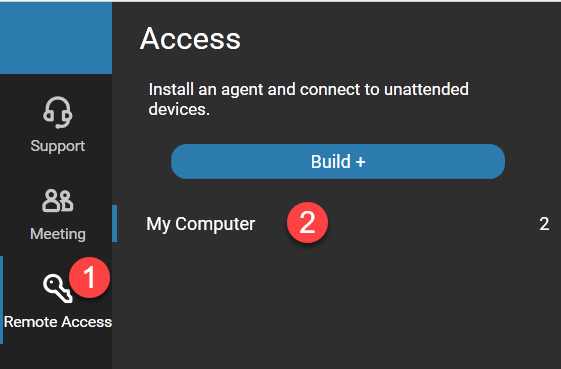
4. There are three ways to connect to a computer
- Double-click on the computer name. (Easiest way)
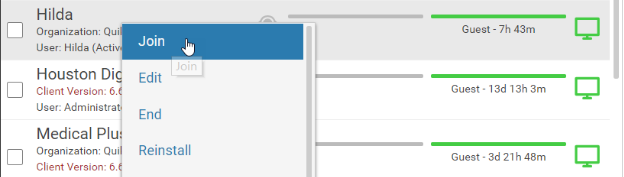
- Select the computer and select the "Join" icon.
- Right-click on the computer and select "Join."
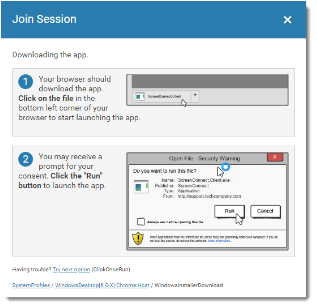
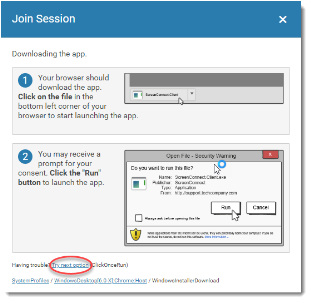
5. The Join Session dialog will open to walk you through connecting to your session.
6. Download & Run the “QuikBox Remote Desktop” App
If this is the first time you are connecting to a computer, QuikBox Remote will attempt to automatically download the app that allows you to connect to your remote computer. After it downloads, [Open] or [Run] the app. Windows Smartscreen and Windows User Access Control will prompt you and say “Do you want this app to make changes”. Please select [Yes], otherwise it will not install.
Troubleshooting
If you are having problems joining a session, click the "Try Next Option" link at the bottom of the dialog to cycle through the available session launcher options.
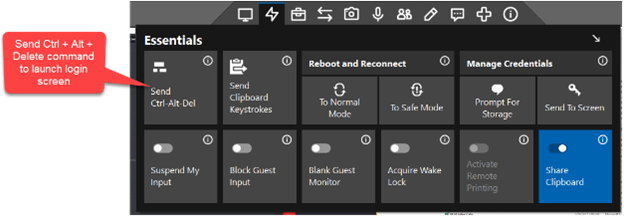
Logging into your Computer
Send Ctrl + Alt + Del command remotely to launch the login screen on your work computer.
Multiple Monitor View
If your remote work PC has multiple monitors, select a single monitor or all monitors to view. To split your monitors into separate windows, click the triple arrows icon to split each monitor into a separate window.
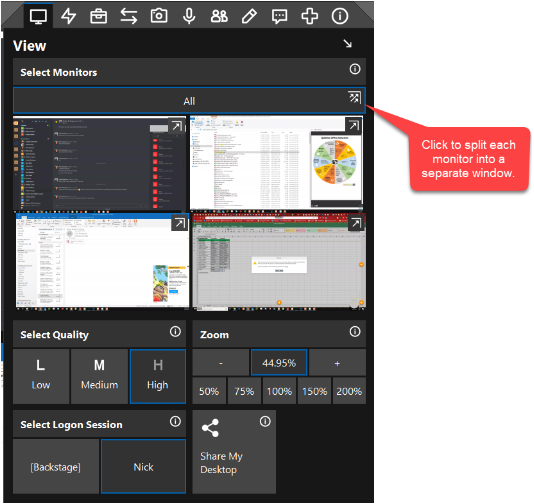
Each window remembers its position on a monitor and will automatically use that position the next time you connect.