# Remoting to your computer

#### Connecting to your Computer

1\. Using Google Chrome Web Browser, go to your unique URL: [https://abccompany.quikbox.com](https://abccompany.quikbox.com "Sample URL")

2\. Login into the host page using your username and password (same as your desktop username and password).

[![image-1637075925125.png](https://books.quikbox.com/uploads/images/gallery/2021-11/scaled-1680-/mmamElfuprVbEsbs-image-1637075925125.png)](https://books.quikbox.com/uploads/images/gallery/2021-11/mmamElfuprVbEsbs-image-1637075925125.png)

3\. Click on **Remote Access** then **My Computer** Session Group[![Remote Desktop.png](https://books.quikbox.com/uploads/images/gallery/2021-11/scaled-1680-/wXi7Y478wDjtDW4b-remote-desktop.png)](https://books.quikbox.com/uploads/images/gallery/2021-11/wXi7Y478wDjtDW4b-remote-desktop.png)

4\. There are three ways to connect to a computer

- Double-click on the computer name. (Easiest way)
- Select the computer and select the "Join" icon.
- Right-click on the computer and select "Join."

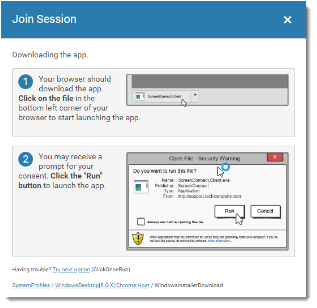
5\. The Join Session dialog will open to walk you through connecting to your session.

[![image-1637076663793.png](https://books.quikbox.com/uploads/images/gallery/2021-11/scaled-1680-/UmE0c68iv868c9qF-image-1637076663793.png)](https://books.quikbox.com/uploads/images/gallery/2021-11/UmE0c68iv868c9qF-image-1637076663793.png)

6\. Download &amp; Run the “QuikBox Remote Desktop” App

<p class="callout info">If this is the first time you are connecting to a computer, QuikBox Remote will attempt to automatically download the app that allows you to connect to your remote computer. After it downloads, \[Open\] or \[Run\] the app. Windows Smartscreen and Windows User Access Control will prompt you and say “Do you want this app to make changes”. Please select \[Yes\], otherwise it will not install.</p>

[![image-1637077059486.png](https://books.quikbox.com/uploads/images/gallery/2021-11/scaled-1680-/SXVSWJREMV9rtkgR-image-1637077059486.png)](https://books.quikbox.com/uploads/images/gallery/2021-11/SXVSWJREMV9rtkgR-image-1637077059486.png)

##### Troubleshooting

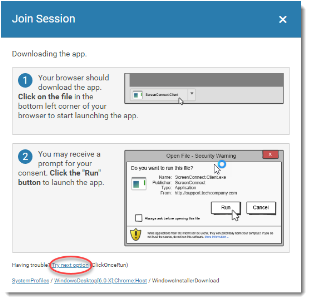
If you are having problems joining a session, click the "<u>Try Next Option</u>" link at the bottom of the dialog to cycle through the available session launcher options.

[![image-1637077136102.png](https://books.quikbox.com/uploads/images/gallery/2021-11/scaled-1680-/koLurBgUNVFAMRd7-image-1637077136102.png)](https://books.quikbox.com/uploads/images/gallery/2021-11/koLurBgUNVFAMRd7-image-1637077136102.png)
#### Logging into your Computer

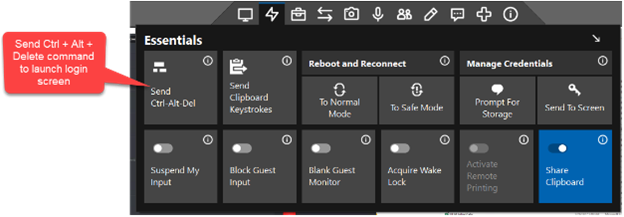
Send Ctrl + Alt + Del command remotely to launch the login screen on your work computer.

[![image-1637077282000.png](https://books.quikbox.com/uploads/images/gallery/2021-11/scaled-1680-/Tsc3kxHPMaCG7AxM-image-1637077282000.png)](https://books.quikbox.com/uploads/images/gallery/2021-11/Tsc3kxHPMaCG7AxM-image-1637077282000.png)
##### Multiple Monitor View

If your remote work PC has multiple monitors, select a single monitor or all monitors to view. To split your monitors into separate windows, click the **triple arrows icon** to split each monitor into a separate window.

[![image-1637077343873.png](https://books.quikbox.com/uploads/images/gallery/2021-11/scaled-1680-/rhI2D3Ku9uEYib7K-image-1637077343873.png)](https://books.quikbox.com/uploads/images/gallery/2021-11/rhI2D3Ku9uEYib7K-image-1637077343873.png)
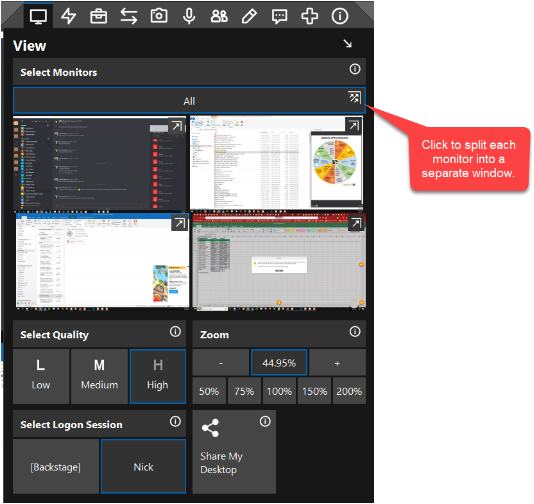
<p class="callout info">Each window remembers its position on a monitor and will automatically use that position the next time you connect.</p>