# Share your Outlook Calendar
1. Select the Calendar button in the Navigation Bar [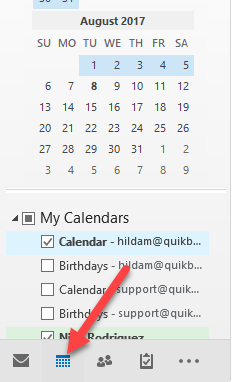](https://books.quikbox.com/uploads/images/gallery/2021-12/hqFe8gT1onNlYpiD-outlook1.png)
2. Select the calendar that you would like to share, right-click on your Calendar and then Calendar Permissions.[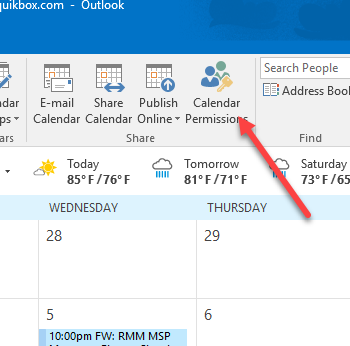](https://books.quikbox.com/uploads/images/gallery/2021-12/CqMbMbDE9YgvHIbb-outlook2.png)
3. On the 'Permissions' tab, you may add or remove users whom you have delegated access to your calendar.[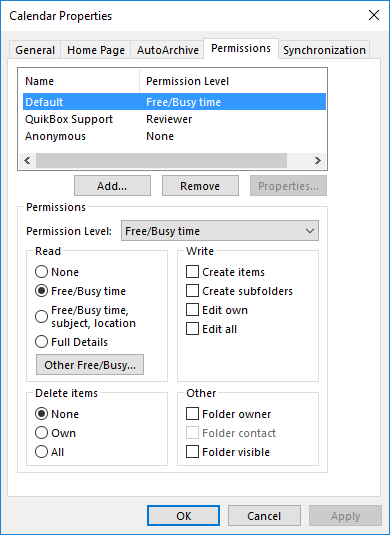](https://books.quikbox.com/uploads/images/gallery/2021-12/nymnUuC1Y067hT8R-outlook3.png)
4. To add a new delegate, select Add... and search for the desired user by Last Name. You can search the Global Address List, or your personal contacts list by selecting the appropriate drop down under Address Book. Under the Permissions heading choose the level of detail you would like to provide the user.[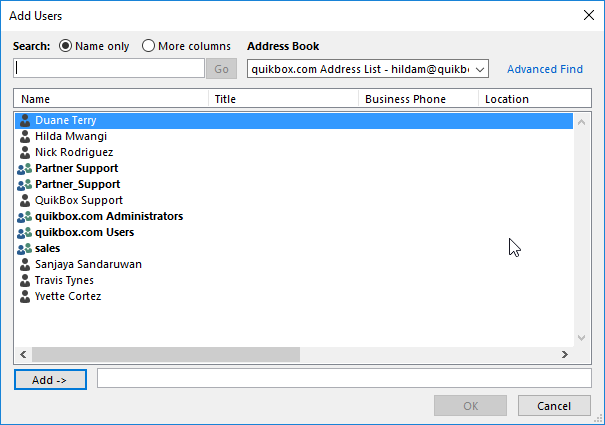](https://books.quikbox.com/uploads/images/gallery/2021-12/H0BJrhQHxyHk3tzJ-outlook4.png)
5. To remove a delegate, select the user and choose Remove.
6. Click **Apply**, then **OK**.
- - - - - -
## Adding a shared calendar to your Outlook
1. Go to **My Calendars
[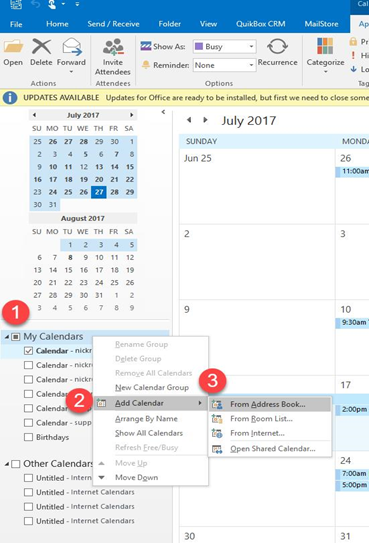](https://books.quikbox.com/uploads/images/gallery/2021-12/JcAAsCpOXb5hOznR-outlook5.png)**
2. Select **Add Calendar**
3. Select **From Address Book**
4. Select the contact whose calendar has been shared then select **OK**[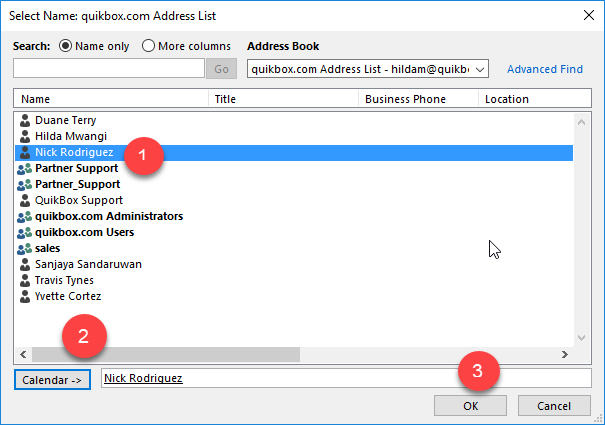](https://books.quikbox.com/uploads/images/gallery/2021-12/ScL3bJXNK5ynWGPB-outlook6.png)