**MailStore Web Access provides access to the archive using an internet browser. This has the advantage that no additional software needs to be installed on the user machines. In addition to browsing and viewing emails, web access also offers access through the folder structure and functions for restoring emails from the archive.**
## MailStore Web Access Requirements
The following web browsers are officially supported by MailStore Web Access:
- Apple Safari 3 or higher
- Google Chrome
- Microsoft Internet Explorer 8 or higher
- Mozilla Firefox 3 or higher
- Opera 9 or higher
# Requirements for Using MailStore Web Access
Activation and configuration of MailStore Web Access is done in the [MailStore Server Service Configuration](http://en.help.mailstore.com/MailStore_Server_Service_Configuration "MailStore Server Service Configuration"). A list of supported internet browsers can be found in the [System Requirements](http://en.help.mailstore.com/System_Requirements#MailStore_Web_Access "System Requirements").
In order to use the *Restore to Mailbox* feature, a MailStore administrator needs to configure the SMTP settings under*Administrative Tools* > *Miscellaneous* > *SMTP Settings* first.
# Accessing MailStore Web Access
Unless MailStore Server was configured differently, users can use the following internet addresses to access MailStore Web Access:
```
http://:8461
https://:8462
```
Please replace with the actual name of the server on which MailStore Server is installed.
[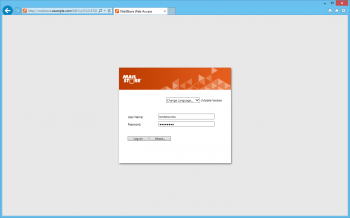](http://en.help.mailstore.com/File:Accs_web_01.png)
To login to MailStore Web Access, fill out the *User Name* and *Password* fields and click *Log on*. Please note, that the username must match the MailStore username of the appropriate user.
**Notice:** If you are using Active Directory integration with MailStore Server, the Microsoft Internet Explorer may be able to authenticate users via Single-Sign-On (Login without username and password).
# Search by Archive Folder
## User Archives
The folder *My Archive* contains all emails that were archived from your mailboxes. If you have read-access to the archives of additional users, their emails are located in the folders labeled *Archive of* .
## Display of Emails in a Folder
To view the emails of a specific folder, simply click on the folder name. The emails are listed below the tree structure.
# Quick Search
With quick search you can browse all emails located in the archives you have access to. This feature is especially suitable for simple queries; alternatively, the extended search can be used (see below).
## Using Quick Search
The input field is located in the upper part of MailStore Web Access. Simply enter one or more keywords and press *ENTER*. The search results are displayed. Keywords which appear in the header or the subject line are highlighted.
## Searching for Word Fragments
To display all emails containing a word beginning with a particular fragment, use the wildcard character (\*). For example:
```
auto*
```
will return *auto*, *automatic*, *automobile* etc.
## Searching for Phrases
To search for words appearing consecutively and in a specific order, use quotation marks (""). For example:
```
"Microsoft Windows"
```
will return the text *Microsoft Windows* but not *Microsoft Works* or *Windows 95*.
## Narrowing by Fields
A search for keywords or phrases can be limited to specific fields. For example:
```
subject:News only in Subject
from:john@mailstore.com only in From
to:michael@mailstore.com only in To
cc:lisa@mailstore.com only in Cc
bcc:customers@mailstore.com only in Bcc
```
## Excluding Words
To narrow a search, you may want to specify words which must not be present in the emails. To exclude words from the search results, prepend the word with the minus character (-). For example:
```
ZDNet -download-tip
```
returns all emails from ZDNet which do not contain *download-tip*.
## Combining Search Options
Any of the search options described above can be combined. For example:
```
ZDNET -"Daily Update"
```
returns all emails from ZDNet which do not contain the consecutive words *Daily Update*.
# Advanced Search
With MailStore's integrated extended search, complex queries can be executed which may not only refer to the email content but also parameters such as the date or the email size.
## Using the Advanced Search
In the upper part of the MailStore Web Access, click on *Advanced Search* and enter the search parameters. The criteria are*AND*-connected, i.e. the search returns only those emails satisfying all criteria. Click on *Search* to start the search.
### Search Criteria under "Extended Search"
Enter a keyword or phrase into the text field, and specify where MailStore is to direct the search.The following options are available:
- **Subject** - The subject line of the email is searched.
- **Sender/Recipient** - The fields "From", "To", "Cc", and "Bcc" are searched.
- **Message body** - The text-only or HTML sections of the email are searched (depending on availability).
- **Attachments File Names** - The file names of the email attachments are searched.
- **Attachment Contents** - The contents of the email attachments are searched. If and to what extent attachments can be searched depends on the indexing options specified (under *Administrative Tools*).
In the textfield *Search for*, all options described in section Quick Search, such as phrases and wildcards, are available here as well.
### Search Criteria under "General"
Under *General*, the following options are available:
- **Folder** - The folder to be searched by MailStore can be selected here. By default, this is the main folder of the current user. By clicking the button to the right of the text field, folders can also be selected using the folder structure. As administrator, the folders of all users can be searched.
- **Include subfolder** - If selected, MailStore not only searches the selected folder (e.g. *Inbox*), but all subfolders created therein (e.g. *Inbox / Projects 2008 / Profit Optimization*) as well.
- **From** - Any keywords or email addresses entered here are searched for only within the email's sender field.
- **To/Cc/Bcc** - Any keywords or email addresses entered here are searched for only within the email's recipient fields.
- **Date** - The timeframe the search is to cover can be selected here. Either a predefined range, such as *Yesterday* or*This year*, can be selected or, by choosing *Custom*, a specific period can be specified manually. In this case, the start and end dates will be included.
In the fields *From* and *To/Cc/Bcc*, all options, such as phrases and wildcards, described in section Quick Search are available.
### Search Criteria under "Extended"
Under *Advanced*, the following options are available:
- **Messages with/without attachments** - By default, all messages are searched, regardless of whether or not they have any file attachments. Clear one of the check boxes to remove certain emails, such as those without attachments, from the results.
**Important:** These searches can be imprecise at times because items like background pictures could be regarded as attachments.
- **Size** - By default, all messages are searched regardless of their size. Use the appropriate fields provided to limit the search according to the size of the emails, e.g. at least *5 MB* or between *400 and 600 KB*.
- **Priority** - Emails are searched according to the priority level of the email as assigned by the sender. When choosing*Low*, all emails with a priority level lower than *Normal* are returned, when choosing High, all emails with a priority level higher than *Normal are returned*. Emails not containing any information regarding priority are assumed to have a priority level of *Normal*.
## Starting a Search
Click on *Search* to start the search. The results are displayed in a list.
## Refining the Search Results
To narrow the results after a search has been executed, click on *Advanced Search* again, enter additional search criteria and click on *Search*.
## Starting a New Search
To start a new search, click on *New Query*. All search criteria will be reset to their default values (i.e. no restrictions; the search covers all folders of the current user).
## Saving a Search
Search criteria that are used repeatedly (such as "all receipts from the last month") can be saved and reused at any time. Click on *Save As...* and choose a meaningful name for the search. Click on *Open* to access, edit or restart the search.
# Email Display
To view an email which was returned by one of the search functions described above, simply click on it. A preview of the email is displayed on the right side of the screen.
Please keep in mind that images and any formatting will not be displayed in the preview for security reasons. Emails cannot be forwarded or replied to within the preview, either.
## Opening Email in Email Application
In the toolbar above the email preview, two buttons are available: *Open in Microsoft Outlook (MSG)* and *Open in Email Client (EML)*. These may be used for instance to answer or forward archived emails. Additionally styles and graphics of HTML emails can be displayed this way.
## Restoring Email
In the toolbar above the email preview you can find the function *Restore to Mailbox*. By using that function, you can send the currently displayed message to an arbitrary email address in order to restore the message from the archive. Before you can use that function, preparations have to be done by a MailStore administrator. Please see [MailStore Server Service Configuration](http://en.help.mailstore.com/MailStore_Server_Service_Configuration "MailStore Server Service Configuration") for more information.
# Printing the Displayed Email
In the toolbar above the email preview you can find the function *Print*. By using that function, you can print the displayed message including the message headers.
# Internet Headers
In the toolbar above the email preview click on *Internet Headers...* to display the internet headers of the current message as well as all MIME parts.
# Changing Regional Settings
Be default the MailStore Web Access uses the same regional settings as your web browser. The regional settings can also be set manually in the MailStore Web Access settings dialog.