# MailStore Client Deployment

# <span style="font-size: 13px;">Using a software distribution system, MailStore Client can be distributed among the users' computers automatically. To be able to do so, the distribution system must be able to execute MailStore Client's setup program without requiring any input or confirmations.  
</span>

# <span class="mw-headline" id="bkmrk-using-group-policies-0">Using Group Policies</span>

## <span class="mw-headline" id="bkmrk-installation-0">Installation</span>

In addition to being installed manually, MailStore Client can also be distributed to all user computers using Active Directory. Once the distribution process is set up successfully, MailStore Client will be installed automatically when the user logs on. This process runs in the background and requires no action on part of the user. Immediately after the distribution, the user can start and use MailStore Client as usual. A shortcut icon on the desktop is created automatically.

Example: Setting up distribution in Windows Server 2003

<div id="bkmrk-the-mailstore-client"><div><div>- The MailStore Client MSI setup file is bundled with the MailStore Server installation. You can either find it via the link on your desktop *Install MailStore Client on other Computers* or in the Setup- subfolder of your MailStore Server program folder.
- Copy the MailStore Client MSI setup file in a directory on the server that is released and accessible to all users of the domain.
- Open the Group Policy Management Console. If this is not available, download the installation routine under [<span class="external free">http://www.quikbox.com/?gpmc</span>](http://files.quikbox.com/wl/?id=T&filename=Current_Version&path=Admin%2520Downloads).
- Install the console.
- Open the group policy management console of the Windows server
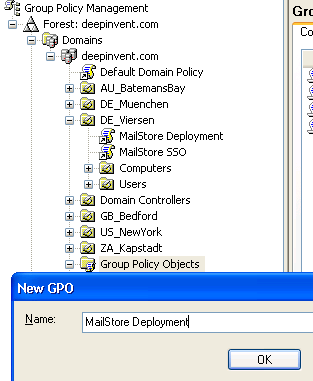
- Right-click on the administrative folder *Group Policy Objects*, select *New* and create a new group policy object called*MailStore Deployment*. <dl><dd><div><div>[![Tech client 01.png](http://en.help.mailstore.com/images/3/39/Tech_client_01.png)](http://en.help.mailstore.com/File:Tech_client_01.png)</div></div></dd></dl>
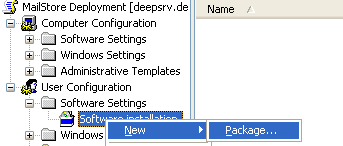
- Highlight the new object and click on *Edit*. Expand User Configuration and Software Settings and right-click on*Software installation*. Select *New* and *Package...*<dl><dd><div><div>[![Tech client 02.png](http://en.help.mailstore.com/images/1/17/Tech_client_02.png)](http://en.help.mailstore.com/File:Tech_client_02.png)</div></div></dd></dl>
- Select an MSI package. Please keep in mind that the path for the file must be entered in UNC notation (e.g. ServerSetupMailStoreClientsetup...) and that the users of the domain have to have read-access to this directory share.
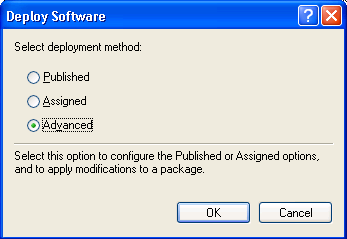
- In the following dialog window, select *Advanced* and click *OK*. <dl><dd><div><div>[![Tech client 03.png](http://en.help.mailstore.com/images/9/9e/Tech_client_03.png)](http://en.help.mailstore.com/File:Tech_client_03.png)</div></div></dd></dl>
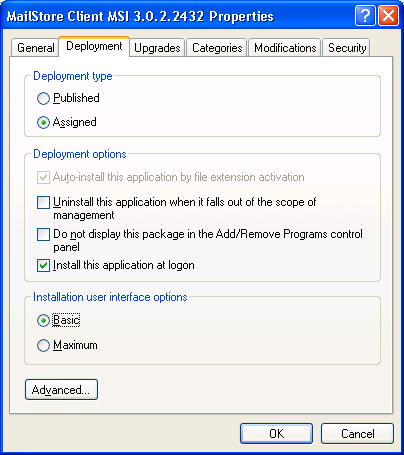
- On the next screen, please select the settings as shown below: <dl><dd><div><div>[![Tech client 04.png](http://en.help.mailstore.com/images/7/79/Tech_client_04.png)](http://en.help.mailstore.com/File:Tech_client_04.png)</div></div></dd></dl>
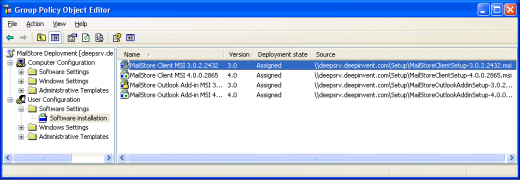
- Click on *OK* to confirm all settings. The group policy should look similar to the one shown below: <dl><dd><div><div>[![Tech client 05.png](http://en.help.mailstore.com/images/thumb/f/fa/Tech_client_05.png/520px-Tech_client_05.png)](http://en.help.mailstore.com/File:Tech_client_05.png)</div></div></dd></dl>
- Close the group policy editor. The group policy is now configured and can be linked to the corresponding user objects. Linking is done using organizational units (OU).
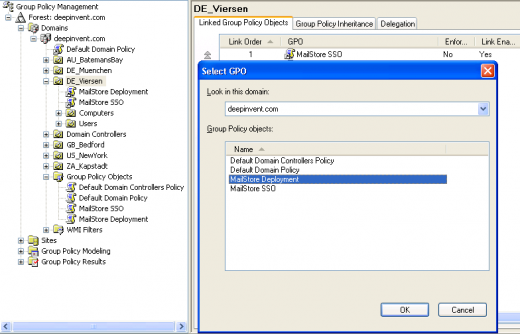
- Highlight the organizational unit (OU) which contains the desired user objects, right-click on the OU (DE\_Viersen in the example below) and select the option *Link an Existing GPO*. In the dialog window Select *GPO*, highlight *MailStore Deployment* and click on *OK*. <dl><dd><div><div>[![Tech client 06.png](http://en.help.mailstore.com/images/thumb/a/a2/Tech_client_06.png/520px-Tech_client_06.png)](http://en.help.mailstore.com/File:Tech_client_06.png)</div></div></dd></dl>
- The group policy is now available and becomes active the next time users log on to the Windows client.

</div></div></div>## <span class="mw-headline" id="bkmrk-updating-0">Updating</span>

With group policies, the MailStore Client software on the user machines can be updated automatically. This becomes necessary if MailStore Server is updated because the server can only be accessed by clients with the same software version. To edit an existing MailStore deployment group policy so that an automatic update of the clients can be performed, please proceed as follows:

<div id="bkmrk-open-the-existing-gr"><div><div>- Open the existing group policy MailStore Deployment. Create a new package and select the updated MailStore Client MSI file. In the following dialog window, select *Advanced* and click on *OK*. Please select the settings as shown below: <dl><dd><div><div>[![Tech client 07.png](http://en.help.mailstore.com/images/6/69/Tech_client_07.png)](http://en.help.mailstore.com/File:Tech_client_07.png)</div></div></dd></dl>
- In the Updates tab, click on *Add* and select the software to be updated. Choose the settings as shown below and click on *OK* and confirm by clicking on *OK* again. <dl><dd><div><div>[![Tech client 08.png](http://en.help.mailstore.com/images/thumb/d/d9/Tech_client_08.png/520px-Tech_client_08.png)](http://en.help.mailstore.com/File:Tech_client_08.png)</div></div></dd></dl>
- The group policy should look similar to the one in the following graphic: <dl><dd><div><div>[![Tech client 09.png](http://en.help.mailstore.com/images/thumb/e/ea/Tech_client_09.png/520px-Tech_client_09.png)](http://en.help.mailstore.com/File:Tech_client_09.png)</div></div></dd></dl>

</div></div></div>MailStore Client will be updated the next time users log on to their Windows workstations.

To avoid complications when installing software using group policies, the following settings for the MailStore Deployment group policy should be adjusted as well:

<div id="bkmrk-activate%C2%A0computer-co"><div><div>- Activate *Computer Configuration/Administrative Templates/System/ScriptsRun logon scripts synchronously*
- Activate *Configuration/Administrative Templates/System/LogonAlways wait for the network at computer startup and logon*

</div></div></div>## <span class="mw-headline" id="bkmrk-configuration-0">Configuration</span>

If Mailstore is used within an Active Directory infrastucture, MailStore Client or the MailStore Outlook add-in (starting with MailStore Server 5.x) can be configured using group policies.

For this purpose, group policy templates are available: For domains in *Windows 2003* mode or older, there is an [ADM-template](http://support.quikbox.com/assets/MailStoreClient_ADM.zip), for domains in *Windows 2008 mode* or newer, an [ADMX-template](http://support.quikbox.com/assets/MailStoreClient_ADMX.zip). The configuration of MailStore Client and the MailStore Outlook add-in is the same for both templates.

**Installing the ADM Template**

The [ADM-template](http://support.quikbox.com/assets/MailStoreClient_ADM.zip) is used for managing group policies on machines running Windows 2003 Server or older. To install the ADM template, please open the group policy management console. (If the group policy management console is not yet installed on your system, you can download it under [<span class="external free">http://www.quikbox.com/?gpmc</span>](http://files.quikbox.com/wl/?id=T&filename=Current_Version&path=Admin%2520Downloads).)

Please proceed as follows:

<div id="bkmrk-download-and-save-th"><div><div>- Download and save the [ADM-template](http://support.quikbox.com/assets/MailStoreClient_ADM.zip).
- Open the group policy management console
- Right-click on the *Group Policy Objects* folder
- Click on *New* and create a new group policy object named *MailStore Client Settings*
- Right-click on the new object and select *Edit*
- In the user configuration, right-click on *Administrative Templates* and select *Add/remove templates...*
- Click on *Add* and enter the path for the ADM file
- Click on *Open* and then close the dialog window
- The installation of the ADM template is now complete

</div></div></div>**Installing the ADMX Template**

The [ADMX-template](http://support.quikbox.com/assets/MailStoreClient_ADMX.zip) is used for managing group policies on machines running Windows 2008 Server or newer. To install the template, please open the group policy management console.

Please proceed as follows:

<div id="bkmrk-download-and-save-th-0"><div><div>- Download and save the [ADMX-template](http://support.quikbox.com/assets/MailStoreClient_ADMX.zip)
- In Windows Explorer, navigate to the folder *%systemroot%sysvoldomainpoliciesPolicyDefinitions*
- Copy the *ADMX Template* into this directory
- Copy the *ADML Templates* from the subfolders (de-DE, en-US) into the corresponding directories
- Close Windows Explorer
- Open the group policy management console
- Right-click on the *Group Policy Objects* folder
- Click on *New* and create a new group policy object called *MailStore Client Settings*
- Right-click on the new object and select *Edit*

<div><div>[![MailStore Client gp 1 NEW en.png](http://en.help.mailstore.com/images/b/b2/MailStore_Client_gp_1_NEW_en.png)](http://en.help.mailstore.com/File:MailStore_Client_gp_1_NEW_en.png)</div></div>- In the user configuration, click on *Policies* and *Administrative Templates* and select the MailStore template

<div><div>[![MailStore Client gp 2 NEW en.png](http://en.help.mailstore.com/images/8/8f/MailStore_Client_gp_2_NEW_en.png)](http://en.help.mailstore.com/File:MailStore_Client_gp_2_NEW_en.png)</div></div>- The installation of the *ADMX Template* is now complete

</div></div></div>**Configuring MailStore Client**

It is possible to set up the hostname or IP-Address of your MailStore Server and whether the MailStore Client should automatically login to your MailStore Server.

<div id="bkmrk-use-autologon-to-mai"><div><div><div><div>[![Ms client settings 01 en.png](http://en.help.mailstore.com/images/thumb/4/4c/Ms_client_settings_01_en.png/350px-Ms_client_settings_01_en.png)](http://en.help.mailstore.com/File:Ms_client_settings_01_en.png)</div></div>- Use Autologon to MailStore Server <dl><dd>Enables or disables the AutoLogon function</dd></dl>
- Server Name: <dl><dd>In case AutoLogon is enabled, you should also tell the MailStore Client to which server it should connect. The format can either be the hostname or an IP-Address. If MailStore Server is listening on other that the default ports, it is required to add the port information to the hostname or IP-Address in the format *:port*.</dd></dl>

</div></div></div>## <span class="mw-headline" id="bkmrk-uninstalling-0">Uninstalling</span>

### <span class="mw-headline" id="bkmrk-group-policy-distrib-0">Group Policy distributed installations</span>

Just like the distribution, the uninstalling of the software packages can be done using group policies. Please proceed as follows:

<div id="bkmrk-open-the-group-polic"><div><div>- Open the group policy management console of your Windows server.
- Expand the folder *Group Policy Objects*.
- Right-click on the group policy object which was created for the software distribution of MailStore and select *Edit*.
- Expand *User Configuration | Software Settings | Software Installation*
- Right-click on the packet to be uninstalled and select *All Tasks -&gt; Delete...*

<dl><dd><div><div>[![Uninstall gpo.jpg](http://en.help.mailstore.com/images/thumb/9/94/Uninstall_gpo.jpg/550px-Uninstall_gpo.jpg)](http://en.help.mailstore.com/File:Uninstall_gpo.jpg)</div></div></dd></dl>- In the following dialog window, select *Software sofort von Benutzern und Computern deinstallieren* and click *OK*.

<dl><dd><div><div>[![Uninstall gpo1.jpg](http://en.help.mailstore.com/images/9/90/Uninstall_gpo1.jpg)](http://en.help.mailstore.com/File:Uninstall_gpo1.jpg)</div></div></dd></dl>- Close all open windows and exit the group policy editor.
- The software will be uninstalled the next time the user logs on to the server.

</div></div></div>### <span class="mw-headline" id="bkmrk-manually-or-not-via--0">Manually or not via GPO distributed installations</span>

For un-installing a MailStore Client application that was not deployed via Group policy, please follow the steps below:

<div id="bkmrk-first-determine-the-"><div><div>- First determine the setup path and parameters. Therefore open the Registry Editor on one of the client PCs and search / open the following key:

```
"HKEY_LOCAL_MACHINESOFTWAREMicrosoftWindowsCurrentVersionUninstallMailStore Client_is1".
```

<dl><dd><div><div>[![Special FilePath.png](http://en.help.mailstore.com/images/thumb/a/ae/Special_FilePath.png/550px-Special_FilePath.png)](http://en.help.mailstore.com/File:Special_FilePath.png)</div></div></dd></dl>- Copy the key value "QuitUninstallString" (e.g. "C:Program FilesdeepinventMailStore Clientunins000.exe" /SILENT) to a new editor window and save the file as mailstore\_uninst.bat.
- Paste the mailstore\_uninst.bat file to the NETLOGON Share of your server
- Open the Group Policy Management console
- Create a new GPO and name it "MailStore Client Uninstall", then link it either to the domain or to the OUs that contain the user objects that have the MailStore Client installed.
- Right click the new GPO and choose "edit.."
- Expand the tree Computerconfiguration | Windows Settings | Scripts
- Right click "Startup" and choose Properties
- Click "Add..." and then "Browse..."
- Pick up the mailstore\_uninst.bat from the NETLOGON-Share and choose "open"
- Save all settings and close the GPO Editor Windows
- Finally open a command prompt and enter "gpupdate /force" to update the group policy setting

</div></div></div>During the next startup of a client machine the GPO will take affect and the MailStore Client will be un-installed unattended.

Now you can create a new GPO for deploying the new MailStore Client MSI. For further information please take a look at MailStore Client Deployment - Installation.

# <span class="mw-headline" id="bkmrk-without-using-group--0">Without using Group Policies</span>

Please refer to [this Microsoft's TechNet article](http://technet.microsoft.com/library/cc759262(WS.10).aspx) to find more information about the Windows installer and msiexec's command line parameters.